Add your item costs (and see your margins)
Updated 31 Oct 2026
Adding a cost takes about 10 seconds per item: one number, no ingredients needed. Once it's in, CaterCloud shows your margin on that item and uses your number on every order and event it appears in, instead of guessing from industry averages.
You do it all from one page, the Item Library, on a computer or your phone.
Add a cost on a computer
Open the Item Library (or click Kitchen in the left menu, then the Item Library link), then:
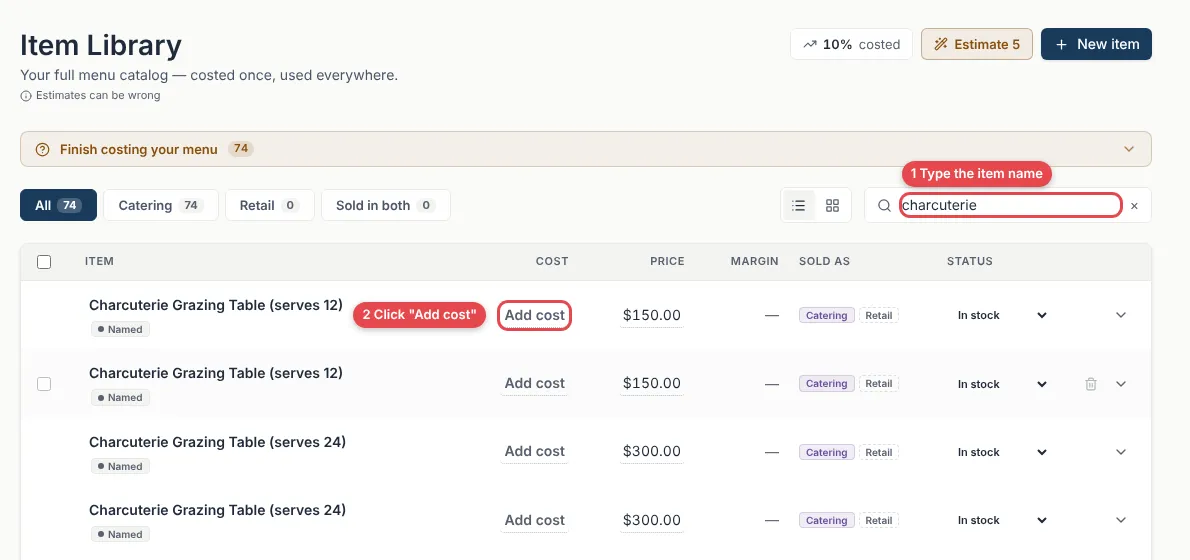
- Type the item's name in the Search box at the top right.
- In the Cost column, click Add cost on that item.
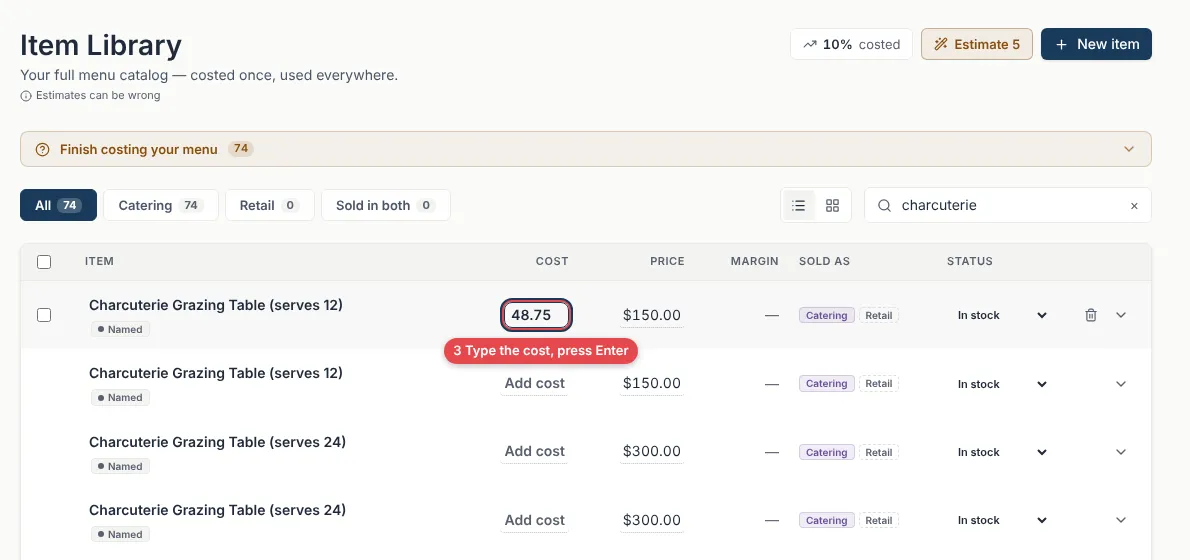
- Type what it costs you to make (for example
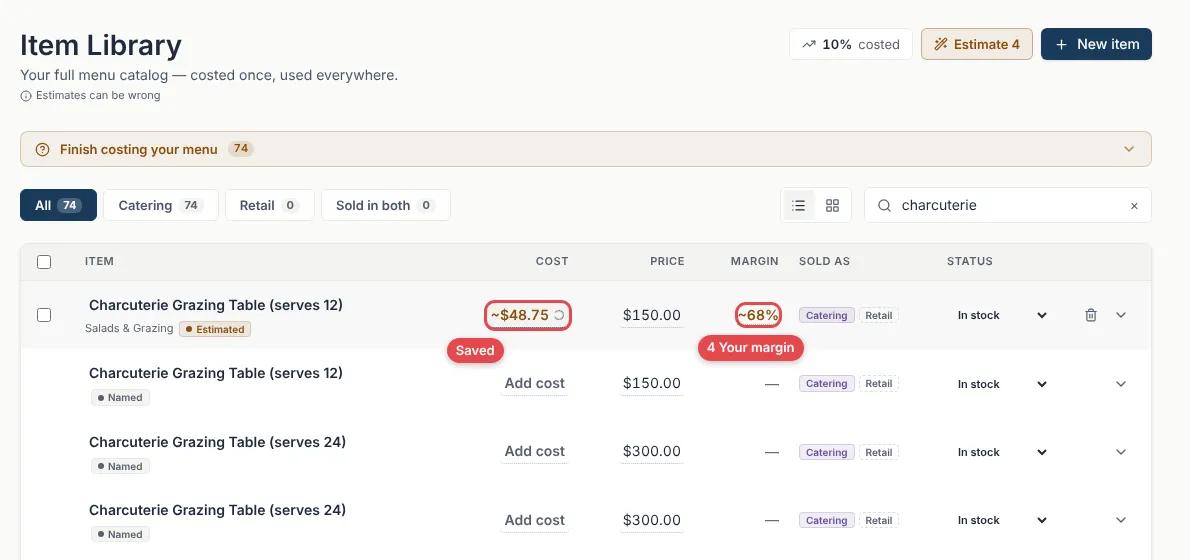
48.75) and press Enter. - That's it. It saves straight away, and your Margin appears next to the price.
To change a cost later, click the number and type the new one. Start with the items you sell most.
Add a cost on your phone
On a phone the Cost column is tucked away, so you open the item first.
- Open the Item Library and search for the item.
- Tap the small arrow on the right of the item to open it.
- Type the cost in the Cost box (it says Cost per serve, Cost per box or Cost per platter).
- Tap anywhere else. It saves by itself.
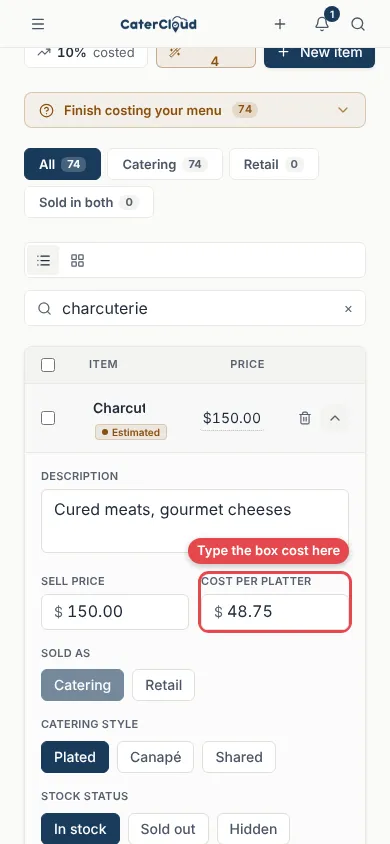
Item names are shortened on a phone screen, so if you have lots of items to cost, a computer is quicker.
What number to enter
Enter the cost of one of whatever you sell that item as: one box, one platter, or one serve. The label on the cost box tells you which.
- A box (sandwiches, sweets, salads) — the label says Cost per box. Enter what the whole box costs you to make. A box for 12 that costs $48.75 →
48.75. - A platter or grazing board — Cost per platter. Enter what the whole platter costs you. A fruit platter that costs $22 →
22. - A dish or canapé in your packages — Cost per serve. Enter what one person's serve costs you. 2 sliders per guest at $1.80 each →
3.60. - A plated meal — Cost per serve. Enter what one plate costs you, e.g.
9.50.
Include the food and packaging that goes with that item. Leave out staff, travel and venue costs — those are counted separately.
A good guess is fine. You can sharpen it later, and a rough number is far more useful than none.
What you'll see after
- ~$48.75 in amber, with an Estimated tag. The
~means it's a number you typed rather than one worked out from a recipe. That's normal and fully counts. - Your margin next to the price, e.g.
~68%for a $150 box that costs $48.75 to make. - Real food costs on your orders and events. Wherever that item is sold, its profit uses your number instead of an industry average.
- The "costed" score at the top of the page goes up as you fill in more items.
Common questions
Do I have to enter ingredients? No. One number per item is enough. If you later add a recipe to an item, CaterCloud works the cost out from the ingredients instead.
Can I change a cost? Yes, any time. Click the number and type the new one. Your margins update straight away; your prices and invoices don't change.
GST? Keep it consistent: if your prices are ex GST, enter costs ex GST too.
Two items have the same name. You might have the same thing on two menus (for example a grazing table on your event menu and as an order box). Enter the cost on both. Once one has a cost, the menu section shows under its name so you can tell them apart.
Where do I start? Your best sellers. A handful of costed items already shows you which ones make you the most.
Still stuck? Open the chat assistant (bottom-right) for help with your specific setup.