Change what your Date & Price Checker asks
Updated 31 Oct 2026
Every screen your customer walks through in the Date & Price Checker is a step in the editor, listed down the left in the order they see it. Pick a step to change its wording, switch it off, or move it. Nothing goes live until you press Publish (see Publish and undo changes to your Date & Price Checker).
Find a step
Open your Date & Price Checker from Build → Widgets. The left side has two lists:
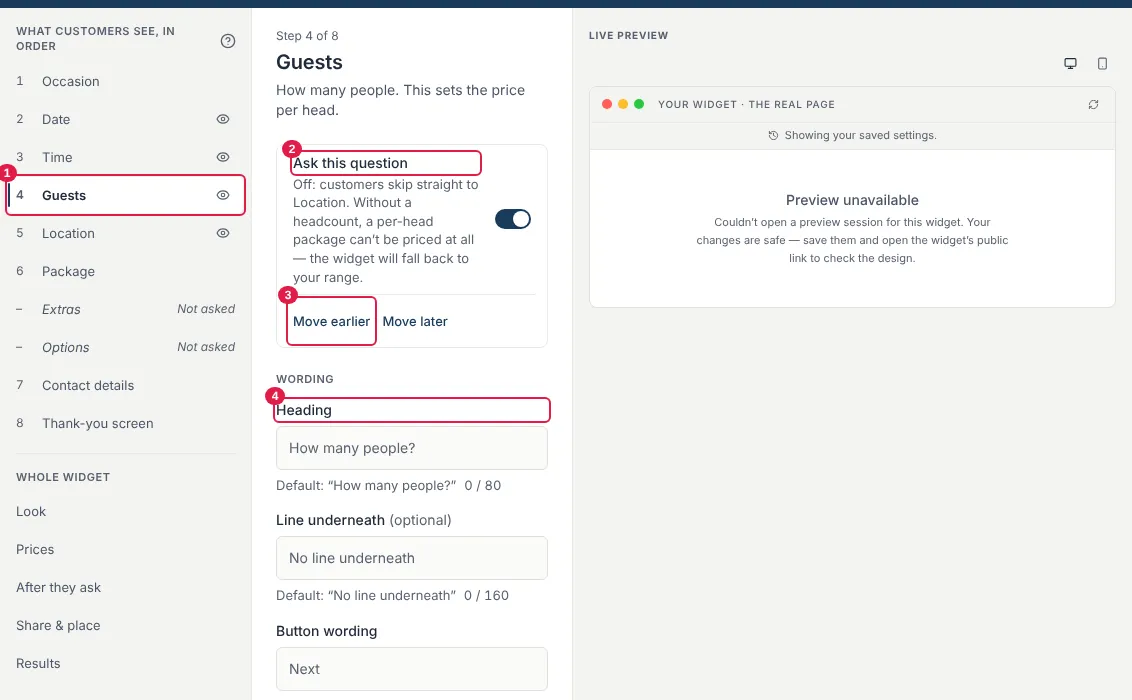
- What customers see, in order — the screens a customer actually walks: Occasion, Date, Time, Guests, Location, Package, Extras, Options, Contact details, and the Thank-you screen. A number beside a step is its place in the order.
- Whole widget — Look, Prices, After they ask, Share & place and Results. These apply to every screen.
On a phone the same lists sit across the top; swipe sideways to see them all. The preview jumps to the step you pick, so you always see what you are changing.
Some steps say Not asked. That means the widget is skipping them right now, for a reason shown under the step name. For example, Location is not asked on a pickup-only widget, and Extras appears once you offer extras.
In the picture: (1) the step in the list, (2) the Ask this question switch, (3) Move earlier and Move later, (4) the Heading field.
Change the wording
- Pick the step in the list.
- Under Wording, edit the Heading (the question itself) and the Line underneath (a short helper line, which you can leave empty).
- Where a step has a button, edit the Button wording too. The Next button wording is shared: it is the same button on every question screen.
The platform's own wording always shows as the starting point, so you can see what you are replacing. On the Package step, putting {guests} in the wording shows the customer's own guest count.
Show or hide a question
- Pick the step.
- Switch Ask this question off.
Under the switch it tells you what you lose: for instance, without a date, day-based pricing and availability can't apply, and every quote prices as a standard day; without a headcount, a per-head package can't be priced and the widget falls back to your range. You can also click the eye on a step's row in the list to stop asking it, and click it again to ask it again.
Only Date, Time, Guests and Location can be switched off. Occasion is always first because it decides which questions follow, Contact details has to come before a price, and the Thank-you screen is always last. Those show Fixed in place with the reason.
Change the order
Date, Time, Guests and Location can be reordered. Pick one and use Move earlier or Move later. A step the widget is skipping, or one you've switched off, is stepped over, so a click always changes what customers see. A switched-off step keeps its place while you have the editor open.
Other things that live on a step
- Occasion — the tiles customers pick from, plus Invite us to festivals and markets, with the wording for those screens.
- Guests — the Headcount range. Outside it the widget stops rather than guessing a price it has no tier for.
- Location — Got a venue? Add its name, Route map, and Setting out from, the base your travel is measured from. Choose Change, type a Street address or suburb and press Save base; it saves at once, with a Saves now · also changes note, because your base is shared with other widgets and events. The example venue, suburb and postcode in the box come from your base; choose Override to type your own, or Use my base to go back.
- Package — Menus to sell from (All my live menus or Only the menus I pick), and each package with a Shown to customers switch. Switching a package off hides it on this widget only. Edit package
If you are stuck
- A step I expected is missing from the order. It shows Not asked with a reason under its name.
- Nothing changed on my website. Edits are a draft until you press Publish.
Still stuck? Open the chat assistant (bottom-right) for help with your specific setup.