Change prices in your Date & Price Checker
Updated 31 Oct 2026
Package prices are set once, on the menu. The Prices section of the editor is for what you layer on top of those prices: weekend and peak-date changes, a minimum spend, travel, and price breaks for bigger groups. A worked example underneath shows what a customer would be quoted, so you can check a rule before you rely on it.
Where to find it
Open your Date & Price Checker from Build → Widgets, then pick Prices under Whole widget.
Package prices
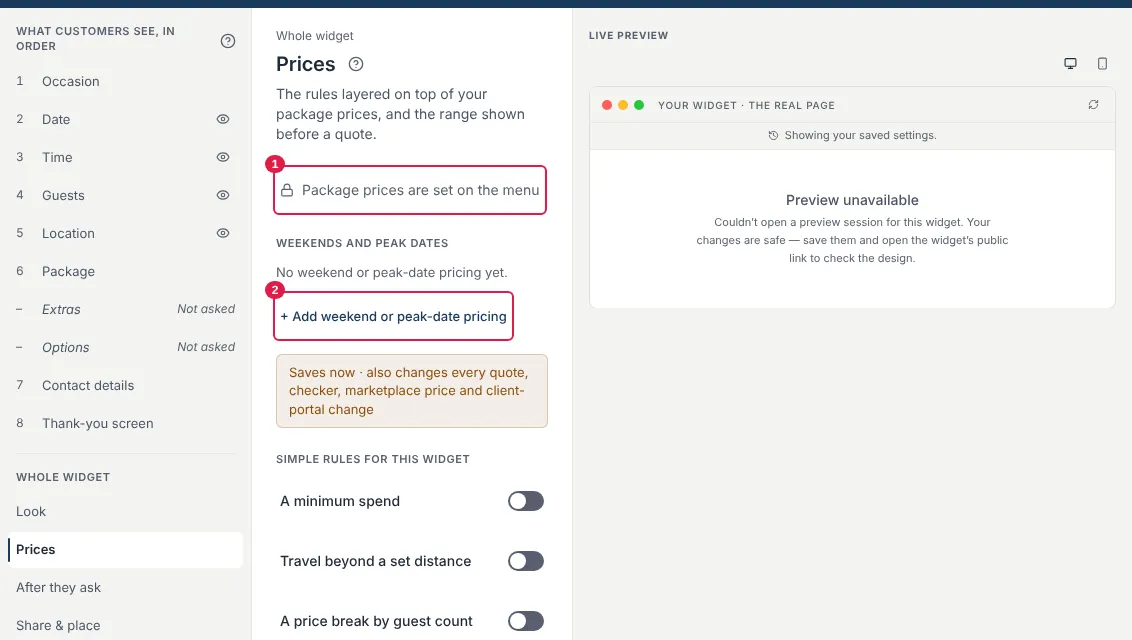
The top of the section reads Package prices are set on the menu. To change a package's own price, tiers or options, go to the Package step and use Edit package. See Change what your Date & Price Checker asks.
Weekends and peak dates
Under Weekends and peak dates each rule reads as a plain sentence, such as "Saturdays cost 10% more" or "20 Dec – 3 Jan costs 20% more".
- Choose + Add weekend or peak-date pricing.
- Pick Certain days of the week (tick the days) or A run of dates (fill From and Until).
- Set the Percent and whether it Costs more or less.
- Check the sentence shown, then choose Add this.
Each rule has Turn off / Turn on, Edit and Remove. Removing asks you to confirm first.
In the picture: (1) the note that package prices are set on the menu, (2) the button that adds a weekend or peak-date rule.
Simple rules for this widget
Under Simple rules for this widget there are three switches. Turn one on and fill in its amounts:
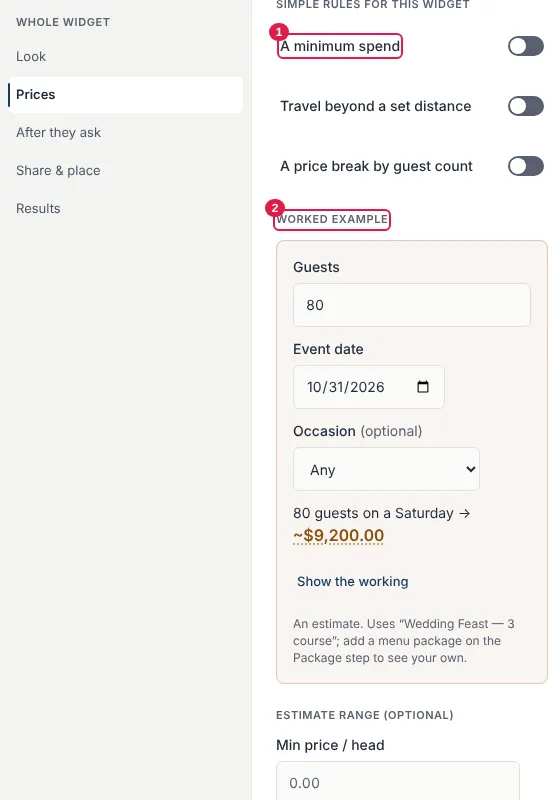
- A minimum spend — set Minimum spend ($). Every per-head quote is at least that amount.
- Travel beyond a set distance — set Free distance (km) and Then per km ($).
- A price break by guest count — set Break at (guests), Up to that, each ($) and Above it, each ($).
The sentence under each switch says in plain words what it does. If a more detailed rule of the same kind already exists under Advanced rules, a note tells you which one wins, so you are never left guessing.
Worked example
Worked example applies your current rules to one of your packages and shows an estimate for a number of guests on a particular day. Change Guests, Event date, Occasion or Distance (km) to try a case, and choose Show the working to see each line that makes up the total. It is marked as an estimate: a real quote uses the customer's own package, date and distance.
In the picture: (1) the three switches for simple rules, (2) the worked example.
Estimate range (optional)
Min price / head and Max price / head set the range shown before a customer reaches a quote, as "from $X to $Y for N guests". Leave them blank to show "Custom quote ready".
Advanced rules
Anything the simple rules can't say, such as service fees, percentage surcharges and minimums for particular occasions, lives under Advanced rules. It is layered on top of the package price, and the count in brackets tells you how many you have.
What "Saves now · also changes…" means
Most edits in the editor are a draft until you press Publish. Weekend and peak-date rules are different: they are shared across your business, so they save at once and also change every quote, checker, marketplace price and client-portal change. The note Saves now · also changes says so before you save. The same note appears when you edit a package or change where you set out from, naming the menu and the other widgets it affects.
These changes are not in the Publish summary and cannot be undone with Undo. To reverse one, change it back.
Still stuck? Open the chat assistant (bottom-right) for help with your specific setup.