Viewing your pipeline and contacts
Updated 30 Oct 2026
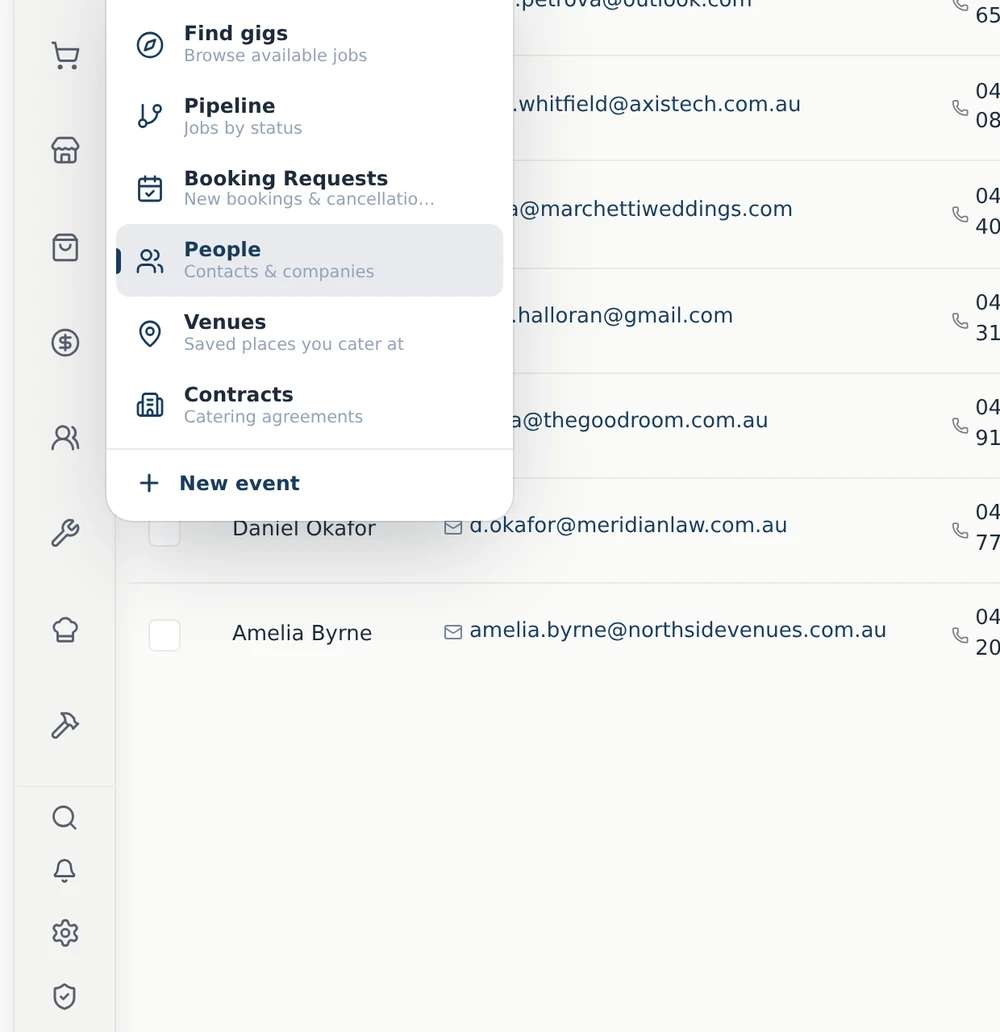
Your Pipeline shows every job by stage, from first enquiry to completed. People is your contact list. Both live under Events in the left menu.
Open your pipeline
- In the left menu, click Events, then Pipeline ("Jobs by status").
- Each job is a card in the column for its stage. The top of each column shows how many jobs are in it and what they're worth.
- Click a card to open the full event.
- Use the three layout icons next to Pipeline at the top to switch between the board, cards and a list. The list is the quickest way to scan a lot of jobs.
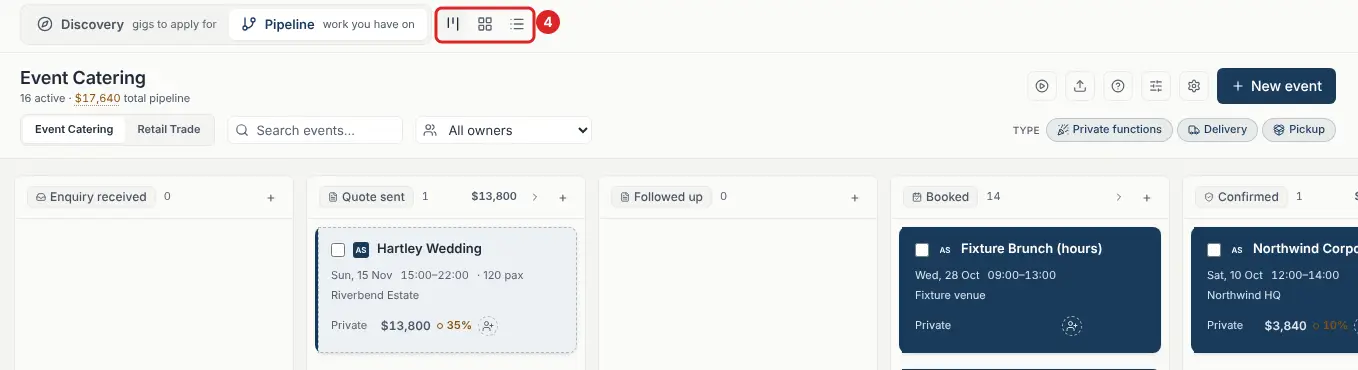
To narrow the board, type in Search events… or pick someone from All owners. If you also trade at markets, switch between Event Catering and Retail Trade to see each board.
What each stage means
- Enquiry received: a new enquiry. Add a quote to move it forward.
- Quote sent: waiting for the customer to reply.
- Followed up: you've been in touch and are waiting on their decision.
- Booked: deposit received, the date is locked in.
- Confirmed: all the details are finalised.
- Ready: prep is done, ready for the day.
- Event day: the event is on today.
- Completed: the event is done and paid. A review request goes out automatically 2 days later.
- Review request sent: the review request has gone out.
- Lost
Move a job to a new stage
Drag the card into the next column. The job's stage updates straight away.
Open your contacts
- In the left menu, click Events, then People ("Contacts & companies").
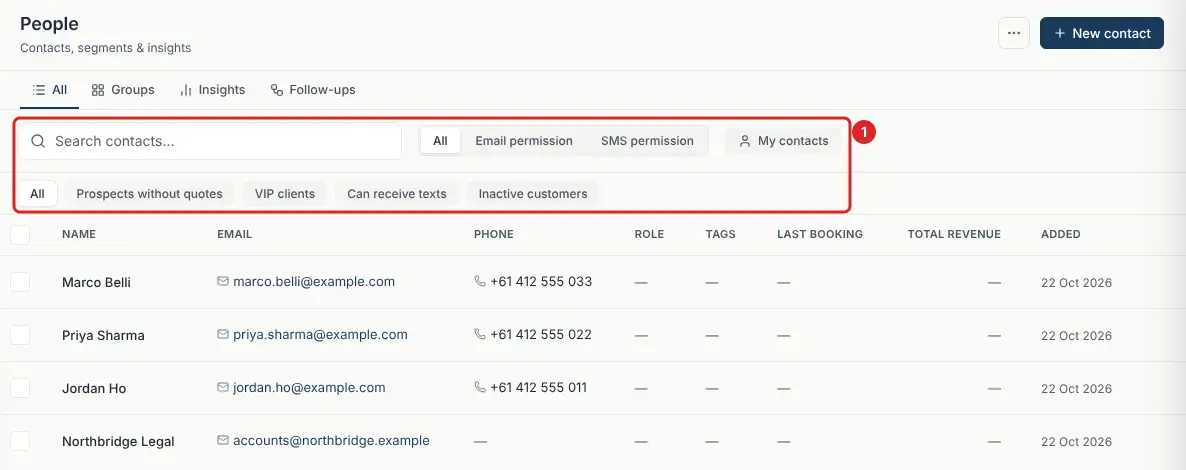
- You'll see every contact with their Name, Email, Phone, Role, Tags, Last booking, Total revenue and the date they were Added.
Find a contact
- Type a name, email or phone number into Search contacts….
- Click Email permission or SMS permission to see only people you can email or text.
- Click My contacts to see only the contacts you own.
- Use the quick filters underneath, such as VIP clients, Prospects without quotes or Inactive customers. Click All to clear the filter.
Look at one contact
Click a contact's name to open their record. You'll see:
- Their Lifetime value, number of Bookings and Quotes, and Last activity.
- An Activity timeline of everything that has happened with them, including enquiries, quotes, messages and bookings.
- On the right: their contact details, where the lead came from, their Tags and any Notes.
Click Message to email or text them, or Edit to update their details.
Add, import or export contacts
- Click New contact at the top of the People page to add someone.
- Click the ··· button next to it for Import, Find duplicates, Manage tags, Export CSV and Archived contacts.
On your phone
Open the menu and tap Events, then Pipeline or People. The steps are the same.
Still stuck? Open the chat assistant (bottom-right) for help with your specific setup.