Create a private event, a pop-up and a public event (festival)
Updated 31 Oct 2026
Every job goes in through one button, New event, and the first choice you make (the event type) decides which fields you are asked for. It takes about a minute.
- Private event (a wedding, birthday or corporate function you are hired for): Event Catering → Private functions
- Pop-up (a market stall or one-off pop-up): Retail Trade → Markets & pop-ups
- Public event (a festival or large public event you apply for a stall at): Retail Trade → Festivals
To save you only need a name and a date (the date is filled in for you). Everything else can be added later, but the more you fill in now, the better your calendar, pipeline and supplies planning.
Before you start
- Have the date, start and finish times, and the address ready.
- For a private event, know who you are cooking for (name, email, phone).
- For a pop-up or festival, have the site fee, your expected sales and the application or event link handy.
Open a new event
- Go to Events and click New event in the top right.

The New event panel opens on the right. Quick shows the essentials; Full view adds a live preview and repeat options (single, daily, weekly, monthly or custom).
Private event (weddings, birthdays, corporate functions)
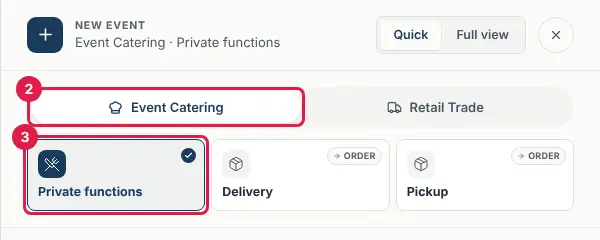
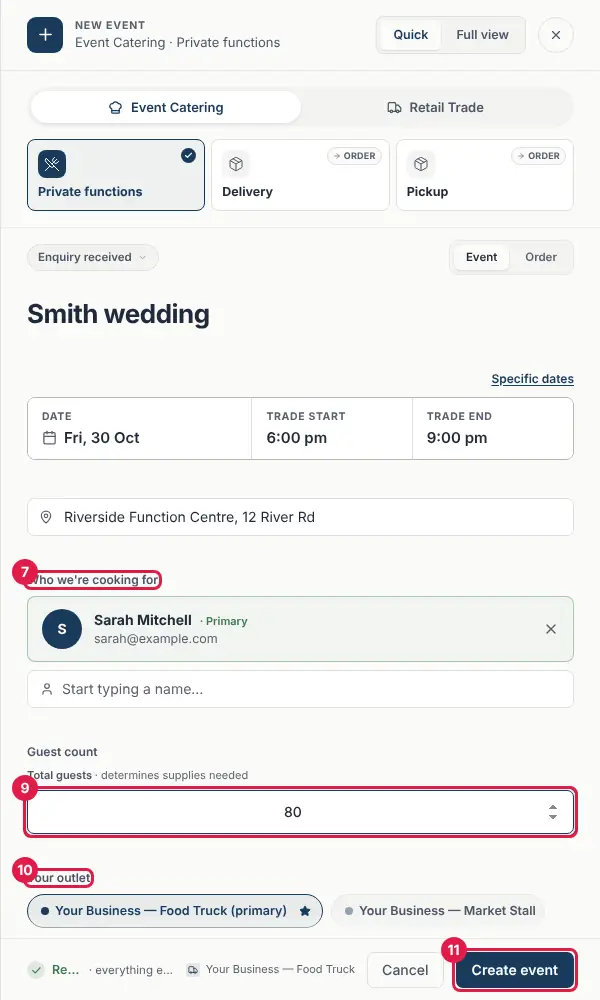
- At the top of the panel, choose Event Catering.
- Choose Private functions. (Delivery and Pickup switch the panel to a new order instead of an event.)
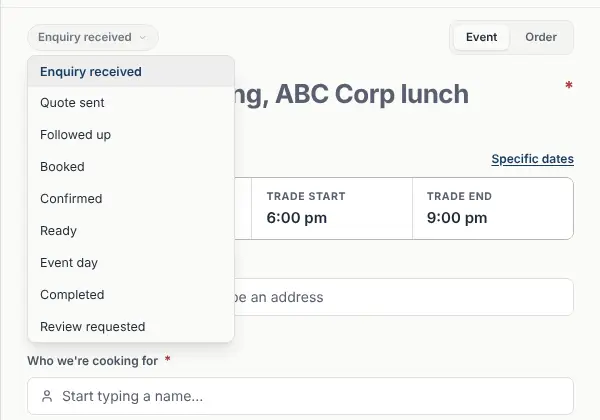
The stage starts at Enquiry received. If the job is further along, click the stage and pick where it really is: Quote sent, Followed up, Booked, Confirmed, Ready, Event day, Completed or Review requested.
- Type the event name, for example "Smith wedding".
- Set the date, then the start and end times. Use Specific dates if it runs over more than one day.
- Search your venues or type the address.
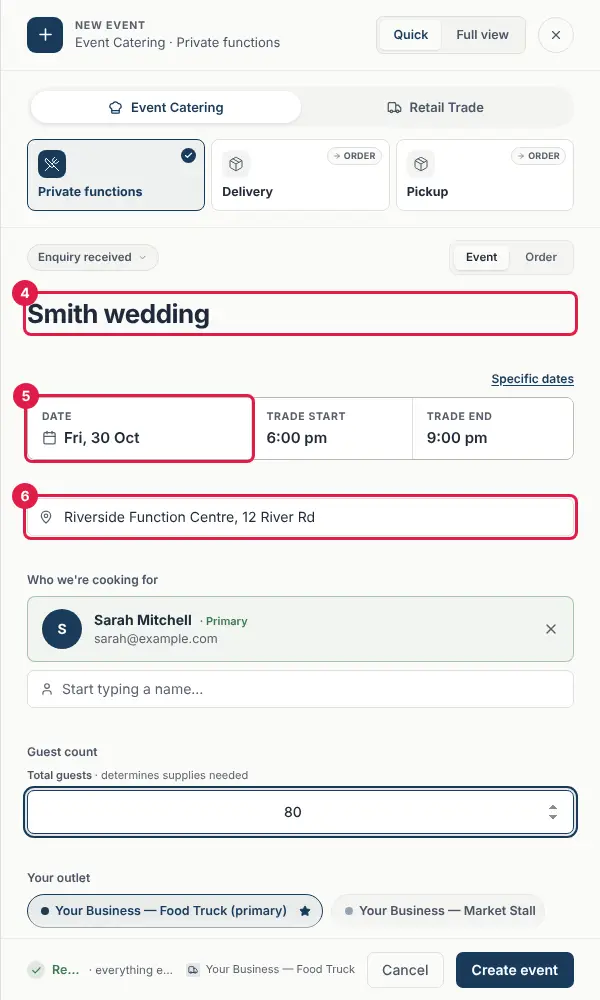
- Under Who we're cooking for, start typing your client's name. Pick them from the list if they are already in CaterCloud, and their details fill in for you.
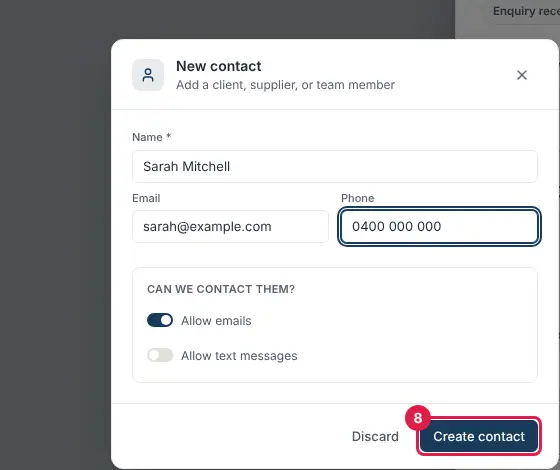
- If they are new, click Create new contact, add their email and phone, choose whether you may email or text them, then click Create contact.
- Enter the guest count. It drives the supplies you will need.
- Check Your outlet. CaterCloud picks your main one; click another to change it.
- Click Create event.
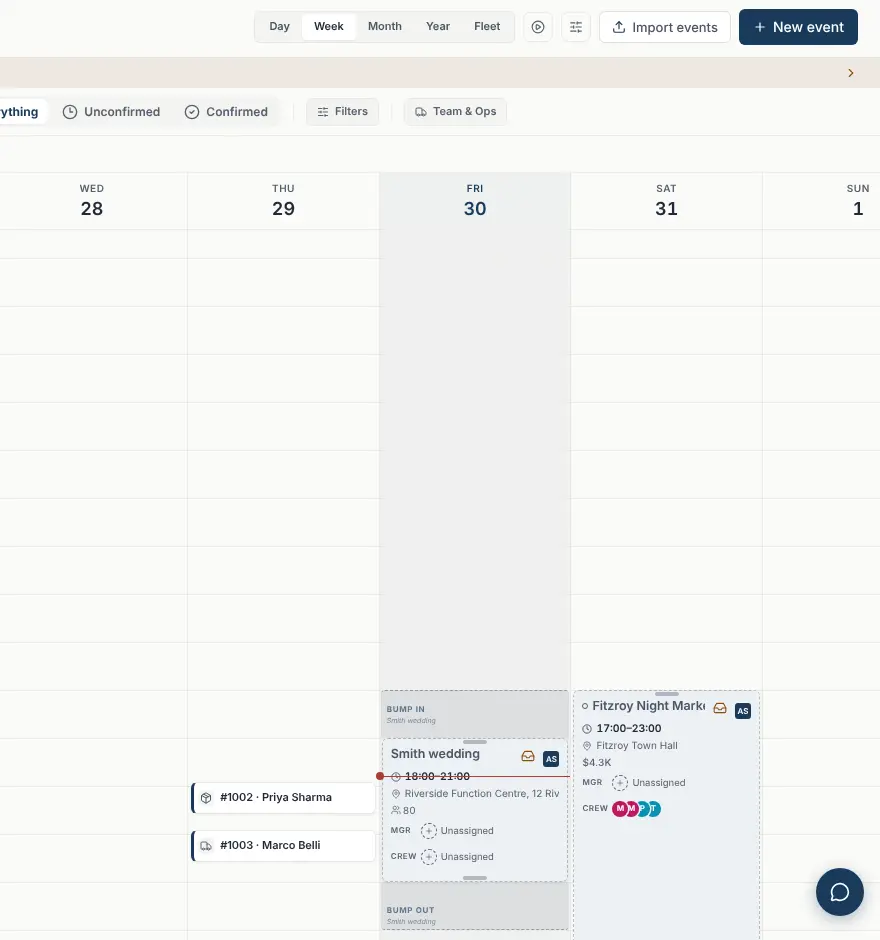
You land back on your calendar with the event in place. Open it any time to add the menu, quote, costs, staff and run sheet.
Pop-up or market stall
- Click New event.
- Choose Retail Trade at the top of the panel.
- Choose Markets & pop-ups.
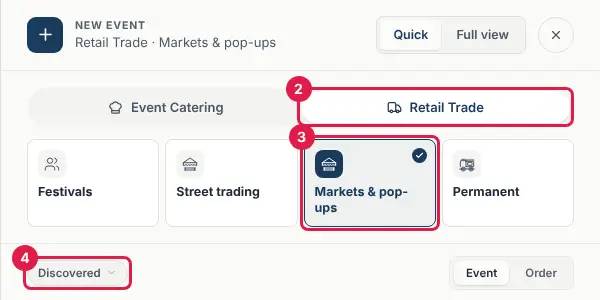
- The stage starts at Discovered. Change it if you have already applied or been accepted.
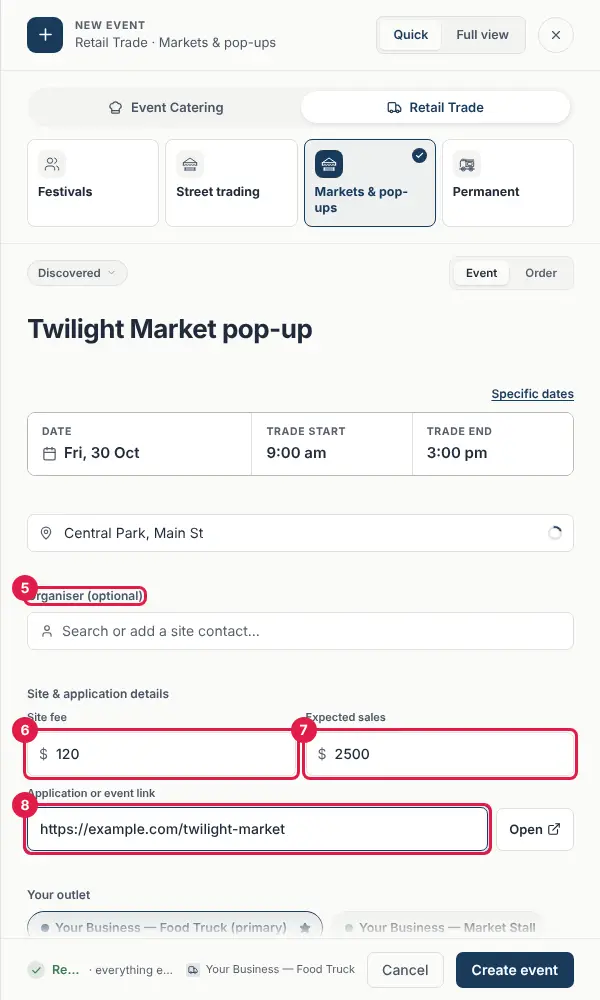
Add the event name, date, trading times and address, the same way as a private event.
- Add the Organiser if you have one. It is optional.
- Under Site & application details, enter the Site fee.
- Enter your Expected sales.
- Paste the Application or event link. An Open button next to it takes you straight there.
- Click Create event at the bottom of the panel.
Public event or festival
Use this when you need to apply for a stall at a festival or large public event.
- Click New event, then choose Retail Trade.
- Choose Festivals.
- Type the event name, for example "Summer Sounds Festival".
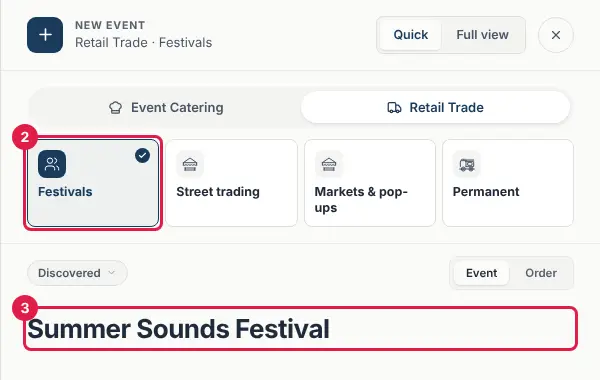
Set the date, trading times and address, and add the organiser if you know them.
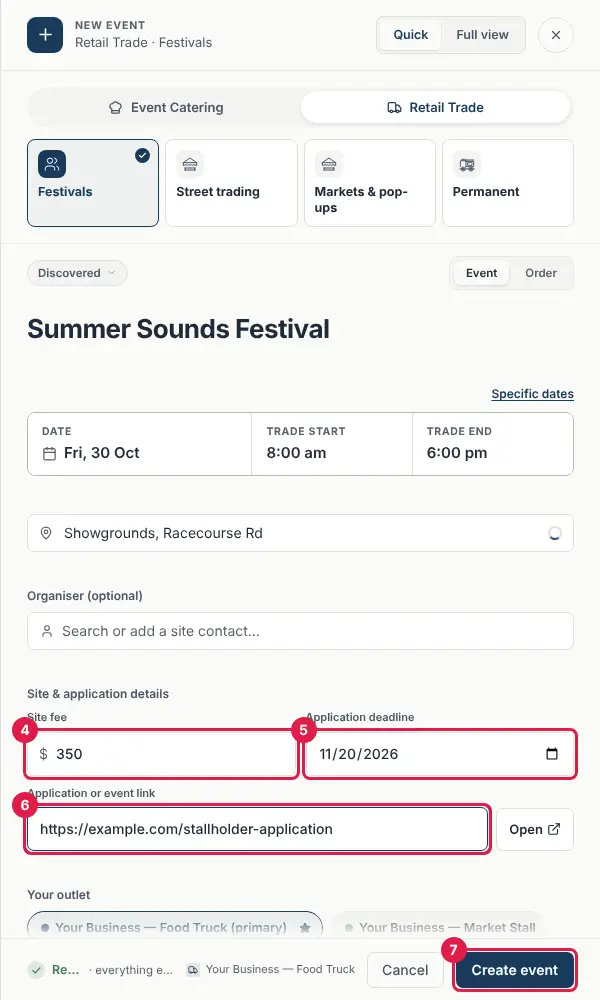
- Enter the Site fee.
- Set the Application deadline, the date applications close.
- Paste the Application or event link, usually the stallholder application form.
- Click Create event.
A festival starts at Discovered. As it moves along, change its stage: Shortlisted, Applications open, Applied, then Confirmed once you are accepted. If you are knocked back, move it to Lost / rejected.
Regular pitches and permanent sites
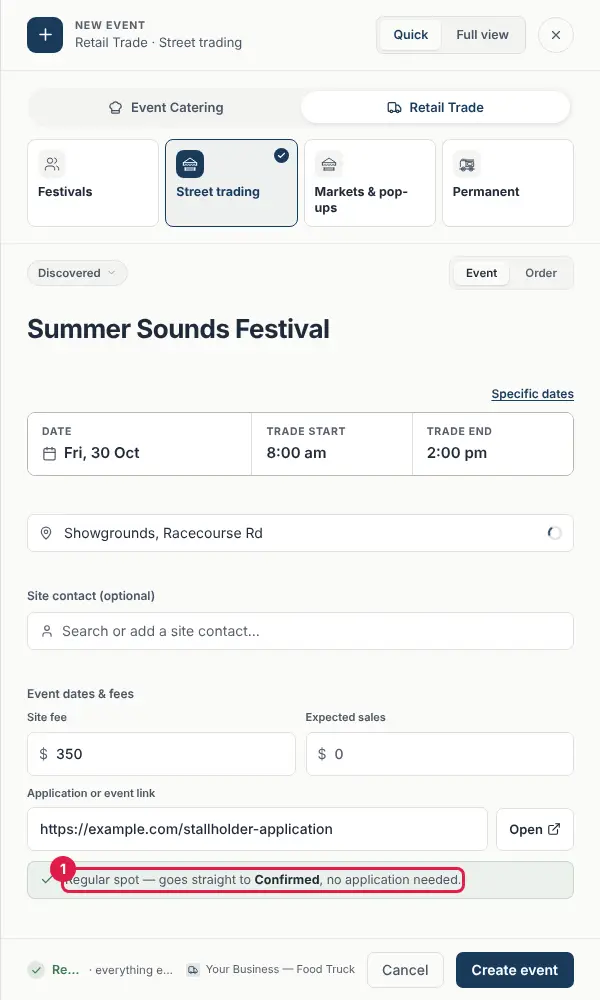
If you trade at the same spot on a schedule, choose Retail Trade → Street trading (a regular pitch) or Permanent (a fixed site). These are standing arrangements, so they go straight to Confirmed with no application step. Open Full view to set how often it repeats.
Tips
- Picked the wrong type? Click a different tile before you save. The panel changes to suit.
- Cancel closes the panel without saving anything.
- Private events live on the Event Catering pipeline; pop-ups, festivals and street trading live on the Retail Trade pipeline. Both show on your calendar.
Still stuck? Open the chat assistant (bottom-right) for help with your specific setup.